`
| |
|
Archive for the ‘Networking’ Category
Monday, November 25th, 2013
Recently we started getting the following error on the Agile India Registration site:
error number: 35
error message: Unknown SSL protocol error in connection to our_payment_gateway:443 |
error number: 35
error message: Unknown SSL protocol error in connection to our_payment_gateway:443 This error occurs when we try to connect to our Payment Gateway using Curl on the server side (PHP.)
By looking at the error message, it occurred to me, that may be, we are not setting the correct SSL protocol, which is supported by our PG server.
Using SSL Lab’s Analyser, I figured out that our PG server only supports SSL Version 3 and TLS Version 1.
Typically, if we don’t specify the SSL version, Curl figures out the supported SSL version and uses that. However to force Curl to use SSL Version 3, I added the following:
curl_setopt($ch, CURLOPT_SSLVERSION, 3); |
curl_setopt($ch, CURLOPT_SSLVERSION, 3); As expected, it did not make any difference.
The next thing that occurred to me, was may be, the server was picking up a wrong SSL certificate and that might be causing the problem. So I got the SSL certificates from my payment gateway and then starting passing the path to the certificates:
curl_setopt($ch, CURLOPT_CAPATH, PATH_TO_CERT_DIR); |
curl_setopt($ch, CURLOPT_CAPATH, PATH_TO_CERT_DIR); Suddenly, it started working; however not always. Only about 50% of the time.
May be there was some timeout issue, so I added another curl option:
curl_setopt($ch, CURLOPT_TIMEOUT, 0); //Wait forever |
curl_setopt($ch, CURLOPT_TIMEOUT, 0); //Wait forever And now it started working always. However, I noticed that it was very slow. Something was not right.
Then I started using the curl command line to test things. When I issued the following command:
curl -v https://my.pg.server
* About to connect() to my.pg.server port 443 (#0)
*   Trying 2001:e48:44:4::d0... connected
* Connected to my.pg.server (2001:e48:44:4::d0) port 443 (#0)
* successfully set certificate verify locations:
*   CAfile: /etc/pki/tls/certs/ca-bundle.crt
  CApath: none
* SSLv3, TLS handshake, Client hello (1):
* Unknown SSL protocol error in connection to my.pg.server:443
* Closing connection #0
curl: (35) Unknown SSL protocol error in connection to my.pg.server:443 |
curl -v https://my.pg.server
* About to connect() to my.pg.server port 443 (#0)
* Trying 2001:e48:44:4::d0... connected
* Connected to my.pg.server (2001:e48:44:4::d0) port 443 (#0)
* successfully set certificate verify locations:
* CAfile: /etc/pki/tls/certs/ca-bundle.crt
CApath: none
* SSLv3, TLS handshake, Client hello (1):
* Unknown SSL protocol error in connection to my.pg.server:443
* Closing connection #0
curl: (35) Unknown SSL protocol error in connection to my.pg.server:443 I noticed that it was connecting on iPV6 address. I was not sure if our PG server supported iPV6.
Looking at Curl’s man pages, I saw an option to resolve the domain name to IPv4 address. When I tried:
curl -v -4 https://my.pg.server |
curl -v -4 https://my.pg.server it worked!
* About to connect() to my.pg.server port 443 (#0)
*   Trying 221.134.101.175... connected
* Connected to my.pg.server (221.134.101.175) port 443 (#0)
* successfully set certificate verify locations:
*   CAfile: /etc/pki/tls/certs/ca-bundle.crt
  CApath: none
* SSLv3, TLS handshake, Client hello (1):
* SSLv3, TLS handshake, Server hello (2):
* SSLv3, TLS handshake, CERT (11):
* SSLv3, TLS handshake, Server finished (14):
* SSLv3, TLS handshake, Client key exchange (16):
* SSLv3, TLS change cipher, Client hello (1):
* SSLv3, TLS handshake, Finished (20):
* SSLv3, TLS change cipher, Client hello (1):
* SSLv3, TLS handshake, Finished (20):
* SSL connection using RC4-MD5
* Server certificate:
* 	 subject: C=IN; ST=Tamilnadu; L=Chennai; O=Name Private Limited;
OU=Name Private Limited; OU=Terms of use at www.verisign.com/rpa (c)05; CN=my.pg.server
* 	 start date: 2013-08-14 00:00:00 GMT
* 	 expire date: 2015-10-13 23:59:59 GMT
* 	 subjectAltName: my.pg.server matched
* 	 issuer: C=US; O=VeriSign, Inc.; OU=VeriSign Trust Network;
OU=Terms of use at https://www.verisign.com/rpa (c)10;
CN=VeriSign Class 3 International Server CA - G3
* 	 SSL certificate verify ok.
> GET / HTTP/1.1
... |
* About to connect() to my.pg.server port 443 (#0)
* Trying 221.134.101.175... connected
* Connected to my.pg.server (221.134.101.175) port 443 (#0)
* successfully set certificate verify locations:
* CAfile: /etc/pki/tls/certs/ca-bundle.crt
CApath: none
* SSLv3, TLS handshake, Client hello (1):
* SSLv3, TLS handshake, Server hello (2):
* SSLv3, TLS handshake, CERT (11):
* SSLv3, TLS handshake, Server finished (14):
* SSLv3, TLS handshake, Client key exchange (16):
* SSLv3, TLS change cipher, Client hello (1):
* SSLv3, TLS handshake, Finished (20):
* SSLv3, TLS change cipher, Client hello (1):
* SSLv3, TLS handshake, Finished (20):
* SSL connection using RC4-MD5
* Server certificate:
* subject: C=IN; ST=Tamilnadu; L=Chennai; O=Name Private Limited;
OU=Name Private Limited; OU=Terms of use at www.verisign.com/rpa (c)05; CN=my.pg.server
* start date: 2013-08-14 00:00:00 GMT
* expire date: 2015-10-13 23:59:59 GMT
* subjectAltName: my.pg.server matched
* issuer: C=US; O=VeriSign, Inc.; OU=VeriSign Trust Network;
OU=Terms of use at https://www.verisign.com/rpa (c)10;
CN=VeriSign Class 3 International Server CA - G3
* SSL certificate verify ok.
> GET / HTTP/1.1
... Long story short, it turns out that passing -4 or –ipv4 curl option, forces iPV4 usage and this solved the problem.
So I removed everything else and just added the following option and things are back to normal:
curl_setopt($ch, CURLOPT_IPRESOLVE, CURL_IPRESOLVE_V4); |
curl_setopt($ch, CURLOPT_IPRESOLVE, CURL_IPRESOLVE_V4);
Posted in Deployment, Hacking, Hosting, HTTP, Networking | 7 Comments »
Tuesday, February 28th, 2012
Last evening I checked into a very popular hotel in Bangalore. I was fascinated by the lavish suites and all the jazz.
Soon my fascination for the real world stopped and I wanted to get on to the internet. As soon as I tried to connect to the internet, I got the following error in my browser:

WTF? I don’t have that crap (IE) with me and would never want to install it either.
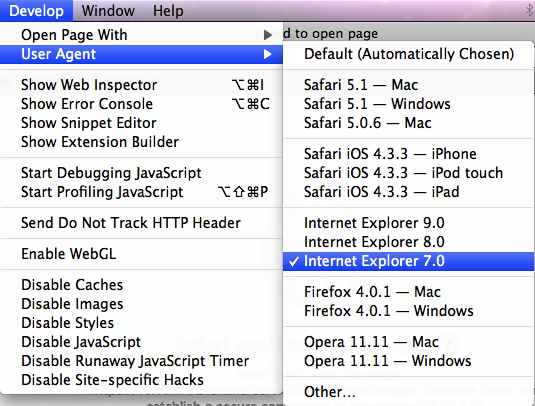
However I realized that I could trick the server, by setting my browser’s user agent to IE 7.
Just as I was celebrating my smartness, I hit the next roadblock:
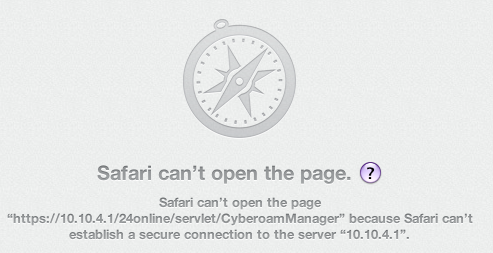
Turns out that the 24Online service uses SSL v2 (Secure Sockets Layer 2.0), which of course was deprecated since the collapse of the roman empire.
I could not figure out how to enable this on safari or chrome. Suddenly I remembered, I could go to the about:config tab in Firefox and poke around there.
Tried filtering on security.*ssl2 and to my surprise found a config property called security.enable_ssl2. Tried turning it on. No luck!
Tried enabling the various encryption algorithms for the protocol/certificate:
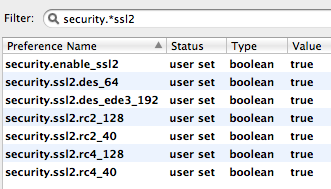
Yahoo! I was able to move to the next hurdle.
Finally I saw Firefox warning me about accessing the site with a fake certificate. I added the certificate to the exception list and there it was, The WWW. Finally I was connect!
Posted in Hacking, Networking | No Comments »
Tuesday, September 6th, 2011
Over the last few years, while building products, I’ve really struggled to keep my users engaged. Its been hard to have your users constantly coming back to your product. There is a fine line between being too pushy and fading away in the background.
Today I was pleasantly surprised to see the following email from LinkedIn.
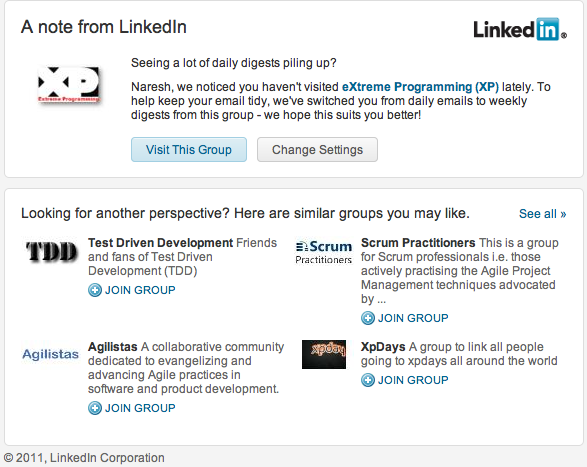
This email has the right balance. It makes you feel important and wanted.
Doing this kind of stuff in products is generally hard. Also I was surprised how they have figured out the related groups and suggesting those to me. Interesting!
Posted in Agile, Marketing, Networking, Product Development | No Comments »
Sunday, July 10th, 2011
Recently an important client of Industrial Logic’s eLearning reported that access to our Agile eLearning website was extremely slow (23+ secs per page load.) This came as a shock; we’ve never seen such poor performance from any part of the world. Besides, a 23+ secs page load basically puts our eLearning in the category of “useless junk”.
| From China |
From India |
 |
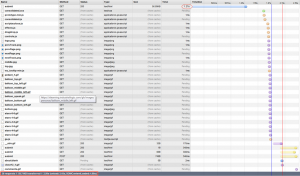 |
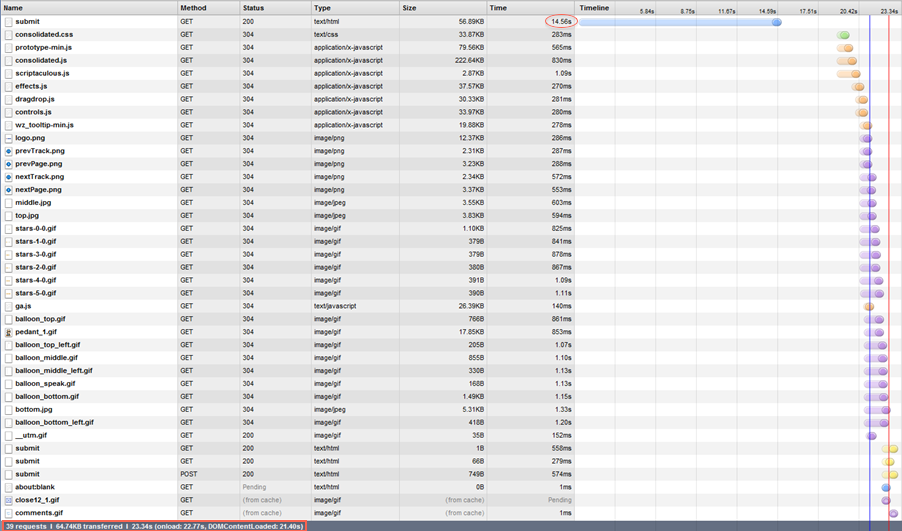
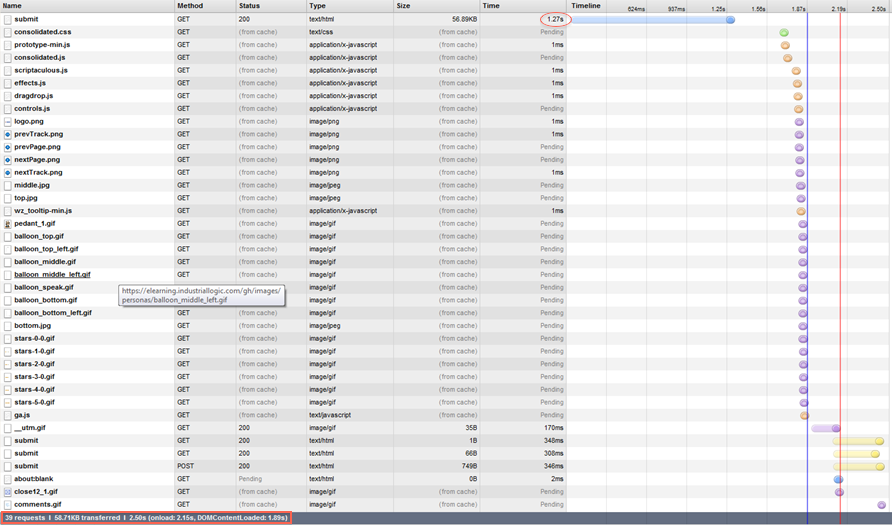
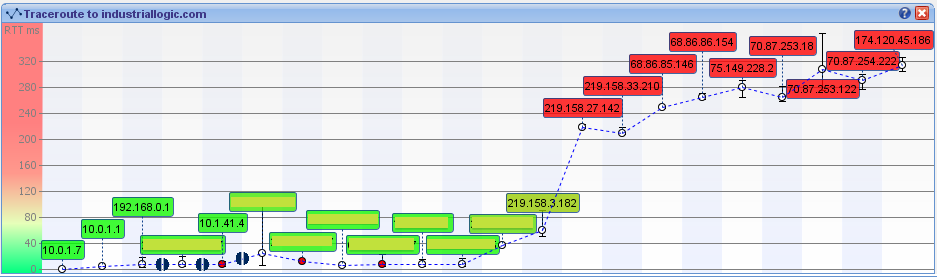
Notice that from China its taking 23.34 secs, while from any other country it takes less than 3 secs to load the page. Clearly the problem was when the request originated from China. We suspected network latency issues. So we tried a traceroute.
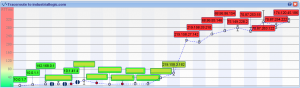
Sure enough, the traceroute does look suspicious. But then soon we realized the since traceroute and web access (http) uses different protocols, they could use completely different routes to reach the destination. (In fact, China has a law by which access to all public websites should go through the Chinese Firewall [The Great Wall]. VPN can only be used for internal server access.)
Ahh..The Great Wall! Could The Great Wall have something to do with this issue?
To nail the issue, we used a VPN from China to test our site. Great, with the VPN, we were getting 3 secs page load.
After cursing The Great Wall; just as we were exploring options for hosting our server inside The Great Wall, we noticed something strange. Certain pages were loading faster than others consistently. On further investigation, we realized that all pages served from our Windows servers were slower by at least 14 secs compared to pages served by our Linux servers.
Hmmm…somehow the content served by our Windows Server is triggering a check inside the Great Wall.
What keywords could the Great Wall be checking for?
Well, we don’t have any option other than brute forcing the keywords.
Wait a sec….we serve our content via HTTPS, could the Great Wall be looking for keywords inside a HTTPS stream? Hope not!
May be it has to do with some difference in the headers, since most firewalls look at header info to take decisions.
But after thinking a little more, it occurred to me that there cannot be any header difference (except one parameter in the URL and may be something in the Cookie.) That’s because we use Nginx as our reverse proxy. The actual content being served from Windows or Linux servers should be transparent to clients.
Just to be sure that something was not slipping by, we decided to do a small experiment. Have the exact same content served by both Windows and Linux box and see if it made any difference. Interestingly the exact same content served from Windows server is still slow by at least 14 secs.
Let’s look at the server response from the browser again:
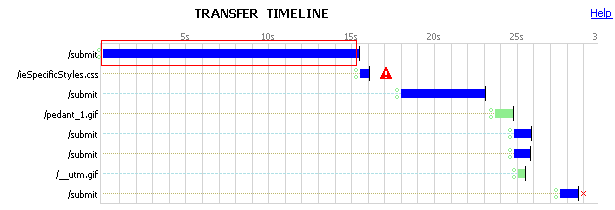
Notice the 15 secs for the initial response to the submit request. This happens only when the request is served by the Windows Server.
We had to look deeper into where those 15 secs are coming from. So we decided to take a deeper look, by using some network analysis tool. And look what we found:
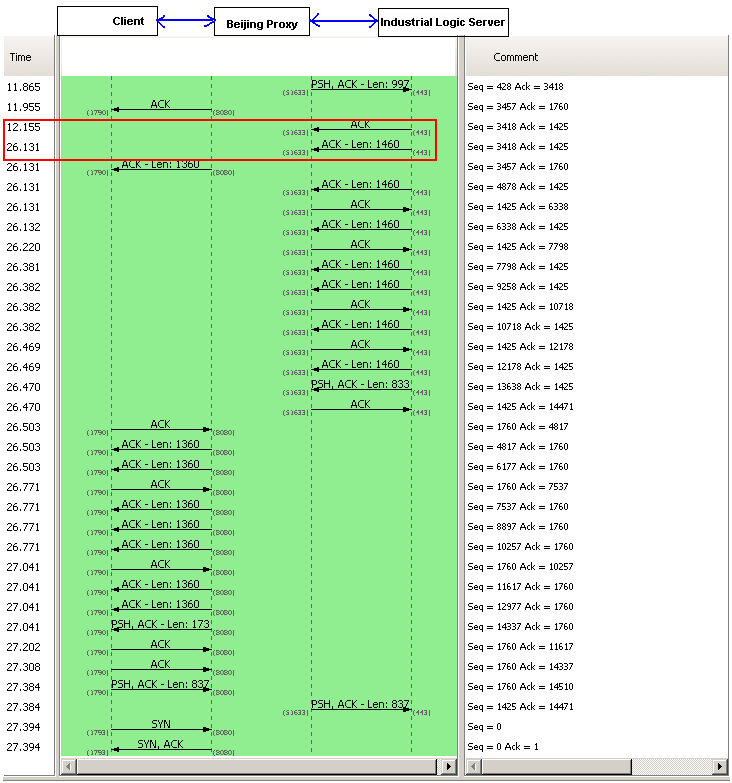
A 14+ sec response from our server side. However this happens only when the request is coming from China. Since our application does not have any country specific code, who else could be interfering with this? There are 3 possibilities:
- Firewall settings on the Windows Server: It was easy to rule this out, since we had disabled the firewall for all requests coming from our Reverse Proxy Server.
- Our Datacenter Network Settings: To prevent against DDOS Attacks from Chinese Hackers. A possibility.
- Low level Windows Network Stack: God knows what…
We opened a ticket with our Datacenter. They responded back with their standard response (from a template) saying: “Please check with your client’s ISP.”
Just as I was loosing hope, I explained this problem to Devdas. When he heard 14 secs delay, he immediately told me that it sounds like a standard Reverse DNS Lookup timeout.
I was pretty sure we did not do any reverse DNS lookup. Besides if we did it in our code, both Windows and Linux Servers should have the same delay.
To verify this, we installed Wire Shark on our Windows servers to monitor Reverse DNS Lookup. Sure enough, nothing showed up.
I was loosing hope by the minute. Just out of curiosity, one night, I search our whole code base for any reverse DNS lookup code. Surprise! Surprise!
I found a piece of logging code, which was taking the User IP and trying to find its host name. That has to be the culprit. But then why don’t we see the same delay on Linux server?
On further investigation, I figured that our Windows Server did not have any DNS servers configured for the private Ethernet Interface we were using, while Linux had it.
Eliminated the useless logging code and configured the right DNS servers on our Windows Servers. And guess what, all request from Windows and Linux now are served in less than 2 secs. (better than before, because we eliminated a useless reverse DNS lookup, which was timing out for China.)
This was fun! Great learning experience.
Posted in Deployment, Hosting, HTTP, Linux, Networking, Windows | 1 Comment »
Monday, November 9th, 2009
If you have your web application running on one tomcat instance and want to add another tomcat instance (ideally on a different machine), following steps will guide you.
Step 1: Independently deploy your web application (WAR file) on each instance and make sure they can work independently.
Step 2: Stop tomcat
Step 3: Update the <Cluster> element under the <Engine> element in the Server.xml file (under the conf dir in tomcat installation dir) on both your servers with:
<Engine name="<meaningful_unique_name>" defaultHost="localhost">
     <Cluster className="org.apache.catalina.ha.tcp.SimpleTcpCluster"
              channelSendOptions="8">
          <Manager className="org.apache.catalina.ha.session.DeltaManager"
                   expireSessionsOnShutdown="false"
                   notifyListenersOnReplication="true"/>
          <Channel className="org.apache.catalina.tribes.group.GroupChannel">
               <Membership className="org.apache.catalina.tribes.membership.McastService"
                           address="228.0.0.4"
                           port="45564"
                           frequency="500"
                           dropTime="3000"/>
               <Receiver className="org.apache.catalina.tribes.transport.nio.NioReceiver"
                         address="auto"
                         port="4000"
                         autoBind="100"
                         selectorTimeout="5000"
                         maxThreads="6"/>
               <Sender className="org.apache.catalina.tribes.transport.ReplicationTransmitter">
                   <Transport className="org.apache.catalina.tribes.transport.nio.PooledParallelSender"/>
               </Sender>
               <Interceptor className="org.apache.catalina.tribes.group.interceptors.TcpFailureDetector"/>
               <Interceptor className="org.apache.catalina.tribes.group.interceptors.MessageDispatch15Interceptor"/>
          </Channel>
          <Valve className="org.apache.catalina.ha.tcp.ReplicationValve"
                 filter=".*\.gif;.*\.js;.*\.jpg;.*\.png;.*\.css;.*\.txt;"/>
          <ClusterListener className="org.apache.catalina.ha.session.ClusterSessionListener"/>
     </Cluster>
     ...
</Engine> |
<Engine name="<meaningful_unique_name>" defaultHost="localhost">
<Cluster className="org.apache.catalina.ha.tcp.SimpleTcpCluster"
channelSendOptions="8">
<Manager className="org.apache.catalina.ha.session.DeltaManager"
expireSessionsOnShutdown="false"
notifyListenersOnReplication="true"/>
<Channel className="org.apache.catalina.tribes.group.GroupChannel">
<Membership className="org.apache.catalina.tribes.membership.McastService"
address="228.0.0.4"
port="45564"
frequency="500"
dropTime="3000"/>
<Receiver className="org.apache.catalina.tribes.transport.nio.NioReceiver"
address="auto"
port="4000"
autoBind="100"
selectorTimeout="5000"
maxThreads="6"/>
<Sender className="org.apache.catalina.tribes.transport.ReplicationTransmitter">
<Transport className="org.apache.catalina.tribes.transport.nio.PooledParallelSender"/>
</Sender>
<Interceptor className="org.apache.catalina.tribes.group.interceptors.TcpFailureDetector"/>
<Interceptor className="org.apache.catalina.tribes.group.interceptors.MessageDispatch15Interceptor"/>
</Channel>
<Valve className="org.apache.catalina.ha.tcp.ReplicationValve"
filter=".*\.gif;.*\.js;.*\.jpg;.*\.png;.*\.css;.*\.txt;"/>
<ClusterListener className="org.apache.catalina.ha.session.ClusterSessionListener"/>
</Cluster>
...
</Engine> For more details on these parameters, check https://sec1.woopra.com/docs/cluster-howto.html
Step 4: Start tomcat and make sure it starts up correctly. You should be able to access http://locahost:8080. Most default tomcat installations come with an examples web app. Try access http://localhost:8080/examples/jsp/ You should see a list of JSP files.
Step 4.a: Also if you see catalina.out log file, you should see:
INFO: Initializing Coyote HTTP/1.1 on http-8080
Nov 9, 2009 9:29:43 AM org.apache.catalina.startup.Catalina load
INFO: Initialization processed in 762 ms
Nov 9, 2009 9:29:43 AM org.apache.catalina.core.StandardService start
INFO: Starting service <server_name>
Nov 9, 2009 9:29:43 AM org.apache.catalina.core.StandardEngine start
INFO: Starting Servlet Engine: Apache Tomcat/6.0.16
Nov 9, 2009 9:29:43 AM org.apache.catalina.ha.tcp.SimpleTcpCluster start
INFO: Cluster is about to start
Nov 9, 2009 9:29:43 AM org.apache.catalina.tribes.transport.ReceiverBase bind
INFO: Receiver Server Socket bound to:/<server_ip>:4000
Nov 9, 2009 9:29:43 AM org.apache.catalina.tribes.membership.McastServiceImpl setupSocket
INFO: Setting cluster mcast soTimeout to 500
Nov 9, 2009 9:29:43 AM org.apache.catalina.tribes.membership.McastServiceImpl waitForMembers
INFO: Sleeping for 1000 milliseconds to establish cluster membership, start level:4 |
INFO: Initializing Coyote HTTP/1.1 on http-8080
Nov 9, 2009 9:29:43 AM org.apache.catalina.startup.Catalina load
INFO: Initialization processed in 762 ms
Nov 9, 2009 9:29:43 AM org.apache.catalina.core.StandardService start
INFO: Starting service <server_name>
Nov 9, 2009 9:29:43 AM org.apache.catalina.core.StandardEngine start
INFO: Starting Servlet Engine: Apache Tomcat/6.0.16
Nov 9, 2009 9:29:43 AM org.apache.catalina.ha.tcp.SimpleTcpCluster start
INFO: Cluster is about to start
Nov 9, 2009 9:29:43 AM org.apache.catalina.tribes.transport.ReceiverBase bind
INFO: Receiver Server Socket bound to:/<server_ip>:4000
Nov 9, 2009 9:29:43 AM org.apache.catalina.tribes.membership.McastServiceImpl setupSocket
INFO: Setting cluster mcast soTimeout to 500
Nov 9, 2009 9:29:43 AM org.apache.catalina.tribes.membership.McastServiceImpl waitForMembers
INFO: Sleeping for 1000 milliseconds to establish cluster membership, start level:4 Step 5: Stop tomcat.
Step 6: We’ll use the examples web app to test if our session replication is working as expected.
Step 6.a: Open the Web.xml file of the “examples” web app in your webapps. Mark this web app distributable, by adding a <distributable/> element at the end of the Web.xml file (just before the </web-app> element)
Step 6.b: Add the session JSP file. This JSP prints the contents of the session and also adds/increments a counter stored in the session.
Step 6.c: Start tomcat on both machines
Step 6.d: You should see the following log in catalina.out
Nov 9, 2009 9:29:44 AM org.apache.catalina.ha.tcp.SimpleTcpCluster memberAdded
INFO: Replication member added:org.apache.catalina.tribes.membership.MemberImpl[tcp://{-64, -88, 0, 101}:4000,{-64, -88, 0, 101},4000, alive=10035,id={68 106 92 39 -110 -8 73 124 -116 -122 -15 -3 11 117 56 105 }, payload={}, command={}, domain={}, ]

Nov 9, 2009 9:29:49 AM org.apache.catalina.ha.session.DeltaManager start
INFO: Register manager /examples to cluster element Engine with name <server_name>
Nov 9, 2009 9:29:49 AM org.apache.catalina.ha.session.DeltaManager start
INFO: Starting clustering manager at /examples
Nov 9, 2009 9:29:49 AM org.apache.catalina.ha.session.DeltaManager getAllClusterSessions
WARNING: Manager [localhost#/examples], requesting session state from org.apache.catalina.tribes.membership.MemberImpl[tcp://{-64, -88, 0, 101}:4000,{-64, -88, 0, 101},4000, alive=15538,id={68 106 92 39 -110 -8 73 124 -116 -122 -15 -3 11 117 56 105 }, payload={}, command={}, domain={}, ]. This operation will timeout if no session state has been received within 60 seconds.
Nov 9, 2009 9:29:49 AM org.apache.catalina.ha.session.DeltaManager waitForSendAllSessions
INFO: Manager [localhost#/examples]; session state send at 11/9/09 9:29 AM received in 101 ms.

Nov 9, 2009 9:29:49 AM org.apache.catalina.core.ApplicationContext log
INFO: ContextListener: contextInitialized()
Nov 9, 2009 9:29:49 AM org.apache.catalina.core.ApplicationContext log
INFO: SessionListener: contextInitialized()
Nov 9, 2009 9:29:50 AM org.apache.coyote.http11.Http11Protocol start
INFO: Starting Coyote HTTP/1.1 on http-8080
Nov 9, 2009 9:29:50 AM org.apache.jk.common.ChannelSocket init
INFO: JK: ajp13 listening on /0.0.0.0:8009
Nov 9, 2009 9:29:50 AM org.apache.jk.server.JkMain start
INFO: Jk running ID=0 time=0/49  config=null
Nov 9, 2009 9:29:50 AM org.apache.catalina.startup.Catalina start
INFO: Server startup in 6331 ms |
Nov 9, 2009 9:29:44 AM org.apache.catalina.ha.tcp.SimpleTcpCluster memberAdded
INFO: Replication member added:org.apache.catalina.tribes.membership.MemberImpl[tcp://{-64, -88, 0, 101}:4000,{-64, -88, 0, 101},4000, alive=10035,id={68 106 92 39 -110 -8 73 124 -116 -122 -15 -3 11 117 56 105 }, payload={}, command={}, domain={}, ]
Nov 9, 2009 9:29:49 AM org.apache.catalina.ha.session.DeltaManager start
INFO: Register manager /examples to cluster element Engine with name <server_name>
Nov 9, 2009 9:29:49 AM org.apache.catalina.ha.session.DeltaManager start
INFO: Starting clustering manager at /examples
Nov 9, 2009 9:29:49 AM org.apache.catalina.ha.session.DeltaManager getAllClusterSessions
WARNING: Manager [localhost#/examples], requesting session state from org.apache.catalina.tribes.membership.MemberImpl[tcp://{-64, -88, 0, 101}:4000,{-64, -88, 0, 101},4000, alive=15538,id={68 106 92 39 -110 -8 73 124 -116 -122 -15 -3 11 117 56 105 }, payload={}, command={}, domain={}, ]. This operation will timeout if no session state has been received within 60 seconds.
Nov 9, 2009 9:29:49 AM org.apache.catalina.ha.session.DeltaManager waitForSendAllSessions
INFO: Manager [localhost#/examples]; session state send at 11/9/09 9:29 AM received in 101 ms.
Nov 9, 2009 9:29:49 AM org.apache.catalina.core.ApplicationContext log
INFO: ContextListener: contextInitialized()
Nov 9, 2009 9:29:49 AM org.apache.catalina.core.ApplicationContext log
INFO: SessionListener: contextInitialized()
Nov 9, 2009 9:29:50 AM org.apache.coyote.http11.Http11Protocol start
INFO: Starting Coyote HTTP/1.1 on http-8080
Nov 9, 2009 9:29:50 AM org.apache.jk.common.ChannelSocket init
INFO: JK: ajp13 listening on /0.0.0.0:8009
Nov 9, 2009 9:29:50 AM org.apache.jk.server.JkMain start
INFO: Jk running ID=0 time=0/49 config=null
Nov 9, 2009 9:29:50 AM org.apache.catalina.startup.Catalina start
INFO: Server startup in 6331 ms Step 6.e: Try to access http://localhost:8080/examples/jsp/session.jsp Try refreshing the page a few times, you should see the counter getting updated.
Step 6.f: You should see the same behavior when you try to access the other tomcat server. Open another tab in your browser and hit http://<other_server_ip>:8080/examples/jsp/session.jsp
Step 6.g: At this point we know the app works fine and the session is working correctly. Now we want to check if the tomcat cluster is replicating the session info. To check this, we want to pass the session from server 1 to session 2 and see if it increments the counter from where we left.
Step 6.h: Before accessing the page, make sure you copy the j_session_id from server 1 (displayed on the http://localhost:8080/examples/jsp/session.jsp). Also make sure to clear all cookies from server 2. (All browsers give you a facility to clear cookies from a specific host/ip).
Step 6.i: Now hit http://<server_2_ip>:8080/examples/jsp/session.jsp;jsessionid=<jsession_id_from_server1>
Step 6.j: If you see the counter incrementing from where ever you had left, congrats! You have session replication working.
Step 6.k: Also catalina.out log file should have:
Nov 9, 2009 9:42:03 AM org.apache.catalina.core.ApplicationContext log
INFO: SessionListener: sessionCreated('CDC57B8C5CFDFDDC2C8572E7D14C0D28')
Nov 9, 2009 9:42:03 AM org.apache.catalina.core.ApplicationContext log
INFO: SessionListener: attributeAdded('CDC57B8C5CFDFDDC2C8572E7D14C0D28', 'counter', '1')
Nov 9, 2009 9:42:05 AM org.apache.catalina.core.ApplicationContext log
INFO: SessionListener: attributeReplaced('CDC57B8C5CFDFDDC2C8572E7D14C0D28', 'counter', '2') |
Nov 9, 2009 9:42:03 AM org.apache.catalina.core.ApplicationContext log
INFO: SessionListener: sessionCreated('CDC57B8C5CFDFDDC2C8572E7D14C0D28')
Nov 9, 2009 9:42:03 AM org.apache.catalina.core.ApplicationContext log
INFO: SessionListener: attributeAdded('CDC57B8C5CFDFDDC2C8572E7D14C0D28', 'counter', '1')
Nov 9, 2009 9:42:05 AM org.apache.catalina.core.ApplicationContext log
INFO: SessionListener: attributeReplaced('CDC57B8C5CFDFDDC2C8572E7D14C0D28', 'counter', '2') While this might like smooth, I ran into lot of issues when getting to this point. Following are some trap routes I ran into:
1) java.sql.SQLException: No suitable driver tomcat cluster
Make sure your DB Driver jar (in our case mysql-connector-java-x.x.xx-bin.jar) is in tomcat/lib folder
2) In catalina.org if you see the following exception:
Nov 7, 2009 3:48:53 PM org.apache.catalina.ha.session.DeltaManager requestCompleted
SEVERE: Unable to serialize delta request for sessionid [1F43C3926FF3CC231574EF248896DCA6]
java.io.NotSerializableException: com.company.product.Class
	at java.io.ObjectOutputStream.writeObject0(ObjectOutputStream.java:1156)
	at java.io.ObjectOutputStream.writeObject(ObjectOutputStream.java:326)
	at java.util.ArrayList.writeObject(ArrayList.java:570)
	at sun.reflect.NativeMethodAccessorImpl.invoke0(Native Method)
	at sun.reflect.NativeMethodAccessorImpl.invoke(NativeMethodAccessorImpl.java:39)
	at sun.reflect.DelegatingMethodAccessorImpl.invoke(DelegatingMethodAccessorImpl.java:25)
at java.lang.reflect.Method.invoke(Method.java:597) |
Nov 7, 2009 3:48:53 PM org.apache.catalina.ha.session.DeltaManager requestCompleted
SEVERE: Unable to serialize delta request for sessionid [1F43C3926FF3CC231574EF248896DCA6]
java.io.NotSerializableException: com.company.product.Class
at java.io.ObjectOutputStream.writeObject0(ObjectOutputStream.java:1156)
at java.io.ObjectOutputStream.writeObject(ObjectOutputStream.java:326)
at java.util.ArrayList.writeObject(ArrayList.java:570)
at sun.reflect.NativeMethodAccessorImpl.invoke0(Native Method)
at sun.reflect.NativeMethodAccessorImpl.invoke(NativeMethodAccessorImpl.java:39)
at sun.reflect.DelegatingMethodAccessorImpl.invoke(DelegatingMethodAccessorImpl.java:25)
at java.lang.reflect.Method.invoke(Method.java:597) This means that you are storing com.company.product.Class object (or some other object that holds a reference to this Object) in your session. And you’ll need to make com.company.product.Class implement Serializable interface.
3) In your catalina.out log if you see
INFO: Register manager /<your_app_name> to cluster element Engine with name <tomcat_engine_name>
Nov 7, 2009 11:56:20 AM org.apache.catalina.ha.session.DeltaManager start
INFO: Starting clustering manager at /<your_app_name>
Nov 7, 2009 11:56:20 AM org.apache.catalina.ha.session.DeltaManager getAllClusterSessions
INFO: Manager [localhost#/<your_app_name>]: <strong>skipping state transfer. No members active in cluster group</strong>. |
INFO: Register manager /<your_app_name> to cluster element Engine with name <tomcat_engine_name>
Nov 7, 2009 11:56:20 AM org.apache.catalina.ha.session.DeltaManager start
INFO: Starting clustering manager at /<your_app_name>
Nov 7, 2009 11:56:20 AM org.apache.catalina.ha.session.DeltaManager getAllClusterSessions
INFO: Manager [localhost#/<your_app_name>]: <strong>skipping state transfer. No members active in cluster group</strong>. If both your tomcat instance are up and running, then check if your tomcat servers can communicate with each other using Multicast with the following commands:
$ ping -t 1 -c 2 228.0.0.4
PING 228.0.0.4 (228.0.0.4): 56 data bytes
64 bytes from <server_1_ip>: icmp_seq=0 ttl=64 time=0.076 ms
64 bytes from <server_2_ip>: icmp_seq=0 ttl=64 time=0.645 ms
— 228.0.0.4 ping statistics —
1 packets transmitted, 1 packets received, +1 duplicates, 0.0% packet loss
or
$ sudo tcpdump -ni en0 host 228.0.0.4
tcpdump: verbose output suppressed, use -v or -vv for full protocol decode
listening on en0, link-type EN10MB (Ethernet), capture size 65535 bytes
22:11:50.016147 IP <server_1_ip>.45564 > 228.0.0.4.45564: UDP, length 69
22:11:50.033336 IP <server_2_ip>.45564 > 228.0.0.4.45564: UDP, length 69
22:11:50.516746 IP <server_1_ip>.45564 > 228.0.0.4.45564: UDP, length 69
22:11:50.533613 IP <server_2_ip>.45564 > 228.0.0.4.45564: UDP, length 69
…
If you don’t see the results as described above, you might want to read my blog on Enabling Multicast.
Posted in Deployment, Java, Networking, Open Source, Tools | 4 Comments »
Sunday, November 8th, 2009
All MacOS kernel are by default capable of sending and receiving multicast datagrams (packets). (So are other kernels in Unix and Linux). However multicasting is not enabled by default. Following are the steps I followed to enable multicast on my Mac (Snow Leopard):
Step 1: Check your network interface supports multicast by running the following command in a terminal window:
$ ifconfig -a
lo0: flags=8049<UP,LOOPBACK,RUNNING,MULTICAST> mtu 16384
inet 127.0.0.1 netmask 0xff000000
inet6 ::1 prefixlen 128
inet6 fe80::1%lo0 prefixlen 64 scopeid 0x1
gif0: flags=8010<POINTOPOINT,MULTICAST> mtu 1280
stf0: flags=0<> mtu 1280
en0: flags=8863<UP,BROADCAST,SMART,RUNNING,SIMPLEX,MULTICAST> mtu 1500
ether 00:26:bb:60:a5:0e
media: autoselect status: inactive
supported media: none autoselect 10baseT/UTP <half-duplex> 10baseT/UTP <full-duplex> 10baseT/UTP <full-duplex,flow-control> 10baseT/UTP <full-duplex,hw-loopback> 100baseTX <half-duplex> 100baseTX <full-duplex> 100baseTX <full-duplex,flow-control> 100baseTX <full-duplex,hw-loopback> 1000baseT <full-duplex> 1000baseT <full-duplex,flow-control> 1000baseT <full-duplex,hw-loopback>
en1: flags=8823<UP,BROADCAST,SMART,SIMPLEX,MULTICAST> mtu 1500
Most important line:
en0: flags=8863<UP,BROADCAST,SMART,RUNNING,SIMPLEX,MULTICAST> mtu 1500
When you see MULTICAST against your network interface, it means your kernel is complied with Multicast option and your network interface supports it.
Step 2: Check if multicast routing is configured:
$netstat -nr
Routing tables
Internet:
| Destination |
Gateway |
Flags |
Refs |
Use |
Netif |
Expire |
| default |
192.168.0.1 |
UGSc |
445 |
0 |
en0 |
| 127 |
127.0.0.1 |
UCS |
0 |
0 |
lo0 |
| 127.0.0.1 |
127.0.0.1 |
UH |
3 |
840119 |
lo0 |
| 169.254 |
link#4 |
UCS |
0 |
0 |
en0 |
| 192.168.0 |
link#4 |
UC |
2 |
0 |
en0 |
| 192.168.0.1 |
0:18:39:8f:69:58 |
UHLWI |
431 |
46 |
en0 |
822 |
| <your_server_ip> |
127.0.0.1 |
UHS |
0 |
0 |
lo0 |
| 192.168.0.255 |
ff:ff:ff:ff:ff:ff |
UHLWbI |
0 |
6 |
en0 |
Internet6:
| Destination |
Gateway |
Flags |
Netif Expire |
| ::1 |
::1 |
UH |
lo0 |
| fe80::%lo0/64 |
fe80::1%lo0 |
Uc |
lo0 |
| fe80::1%lo0 |
link#1 |
UHL |
lo0 |
| fe80::%en0/64 |
link#4 |
UC |
en0 |
| fe80::217:f2ff:fec9:ac94%en0 |
0:17:f2:c9:ac:94 |
UHLW |
en0 |
| fe80::226:bbff:fe60:a50e%en0 |
0:26:bb:60:a5:e |
UHL |
lo0 |
| ff01::/32 |
::1 |
Um |
lo0 |
| ff02::/32 |
::1 |
UmC |
lo0 |
| ff02::/32 |
link#4 |
UmC |
en0 |
If you don’t see an IP in the range of 224.0.0.0 – 239.255.255.255 in the first table, it means you need to add your desired mutlicast address to your routes table.
Step 3: To add the multicast address:
sudo route -nv add -net 228.0.0.4 -interface en0
Make sure you run this command on all servers you want to be multicast enabled.
Step 4: Using netstat check if the multicast IP is visible in your route table
$ netstat -nr
Routing tables
Internet:
| Destination |
Gateway |
Flags |
Refs |
Use |
Netif |
Expire |
| default |
192.168.0.1 |
UGSc |
445 |
0 |
en0 |
| 127 |
127.0.0.1 |
UCS |
0 |
0 |
lo0 |
| 127.0.0.1 |
127.0.0.1 |
UH |
3 |
840119 |
lo0 |
| 169.254 |
link#4 |
UCS |
0 |
0 |
en0 |
| 192.168.0 |
link#4 |
UC |
2 |
0 |
en0 |
| 192.168.0.1 |
0:18:39:8f:69:58 |
UHLWI |
431 |
46 |
en0 |
822 |
| <your_server_ip> |
127.0.0.1 |
UHS |
0 |
0 |
lo0 |
| 192.168.0.255 |
ff:ff:ff:ff:ff:ff |
UHLWbI |
0 |
6 |
en0 |
| 228.0.0.4/32 |
1:0:5e:0:0:4 |
UmLS |
1 |
1221 |
en0 |
…
Step 5: Using tcpdump and ping check if your server is able to multicast.
$ sudo tcpdump -ni en0 host 228.0.0.4
tcpdump: verbose output suppressed, use -v or -vv for full protocol decode
listening on en0, link-type EN10MB (Ethernet), capture size 65535 bytes
Run the above command on all the servers.
Run the following command on any one server.
$ ping -t 1 -c 2 228.0.0.4
Now you should see the following line on all the servers that you want multicast enabled.
21:36:01.586800 IP <your_server_ip> > 228.0.0.4: ICMP echo request, id 62506, seq 0, length 64
In future if you want to disable multicast, just drop the IP from Routes Table:
$ sudo route -v delete -inet 228.0.0.4
Multicast over TCP/IP HOWTO is a great reference material if you want to understand Multicast in detail.
Also to enable Multicast on Linux distro refer to: http://www.dancres.org/bjspj/docs/docs/linux.html
Posted in Networking | 6 Comments »
|