`
| |
|
Archive for the ‘Hosting’ Category
Sunday, January 12th, 2014
I use SSH to connect to my servers for executing various deployment and monitoring scripts. Of late, whenever I ran my scripts, I kept getting this annoying perl warning:
perl: warning: Setting locale failed.
perl: warning: Please check that your locale settings:
    LANGUAGE = (unset),
    LC_ALL = (unset),
    LANG = "en_US.UTF-8"
are supported and installed on your system.
perl: warning: Falling back to the standard locale ("C"). |
perl: warning: Setting locale failed.
perl: warning: Please check that your locale settings:
LANGUAGE = (unset),
LC_ALL = (unset),
LANG = "en_US.UTF-8"
are supported and installed on your system.
perl: warning: Falling back to the standard locale ("C"). At first, I thought this must be due to some changes on my server. So I tried to set the LANG environment variable in bash on the server. No luck!
Later I realised, it has to do with my recent upgrade to Mac OS X Mavericks. Turns out that if you are using SSH, there are 2 variables which need to be set on your local machine, which gets passes down to your sever when you connect via SSH.
After adding the following lines to ~/.bash_profile on my local machine, the warning went away:
export LC_CTYPE=en_US.UTF-8
export LC_ALL=en_US.UTF-8 |
export LC_CTYPE=en_US.UTF-8
export LC_ALL=en_US.UTF-8
Posted in Deployment, Hosting | 7 Comments »
Wednesday, December 11th, 2013
Just learned this little trick in apache’s .htaccess file to strip out the trailing .html from my URLs:
RewriteEngine on
RewriteCond %{REQUEST_FILENAME} !-d
RewriteCond %{REQUEST_FILENAME}\.html -f
RewriteRule ^(.*)$ $1.html |
RewriteEngine on
RewriteCond %{REQUEST_FILENAME} !-d
RewriteCond %{REQUEST_FILENAME}\.html -f
RewriteRule ^(.*)$ $1.html After adding the above lines to the .htaccess file, when I request for http://nareshjain.com/about it automatically serves http://nareshjain.com/about.html page. It also handles named anchor’s very well. For example http://nareshjain.com/services/clients#testimonials works perfectly fine as well.
Rationale behind this:
- My URLs are shorter
- Gives me the flexibility to use some web-framework to serve my pages in future.
Posted in Deployment, Hosting, HTTP | No Comments »
Monday, November 25th, 2013
Recently we started getting the following error on the Agile India Registration site:
error number: 35
error message: Unknown SSL protocol error in connection to our_payment_gateway:443 |
error number: 35
error message: Unknown SSL protocol error in connection to our_payment_gateway:443 This error occurs when we try to connect to our Payment Gateway using Curl on the server side (PHP.)
By looking at the error message, it occurred to me, that may be, we are not setting the correct SSL protocol, which is supported by our PG server.
Using SSL Lab’s Analyser, I figured out that our PG server only supports SSL Version 3 and TLS Version 1.
Typically, if we don’t specify the SSL version, Curl figures out the supported SSL version and uses that. However to force Curl to use SSL Version 3, I added the following:
curl_setopt($ch, CURLOPT_SSLVERSION, 3); |
curl_setopt($ch, CURLOPT_SSLVERSION, 3); As expected, it did not make any difference.
The next thing that occurred to me, was may be, the server was picking up a wrong SSL certificate and that might be causing the problem. So I got the SSL certificates from my payment gateway and then starting passing the path to the certificates:
curl_setopt($ch, CURLOPT_CAPATH, PATH_TO_CERT_DIR); |
curl_setopt($ch, CURLOPT_CAPATH, PATH_TO_CERT_DIR); Suddenly, it started working; however not always. Only about 50% of the time.
May be there was some timeout issue, so I added another curl option:
curl_setopt($ch, CURLOPT_TIMEOUT, 0); //Wait forever |
curl_setopt($ch, CURLOPT_TIMEOUT, 0); //Wait forever And now it started working always. However, I noticed that it was very slow. Something was not right.
Then I started using the curl command line to test things. When I issued the following command:
curl -v https://my.pg.server
* About to connect() to my.pg.server port 443 (#0)
*   Trying 2001:e48:44:4::d0... connected
* Connected to my.pg.server (2001:e48:44:4::d0) port 443 (#0)
* successfully set certificate verify locations:
*   CAfile: /etc/pki/tls/certs/ca-bundle.crt
  CApath: none
* SSLv3, TLS handshake, Client hello (1):
* Unknown SSL protocol error in connection to my.pg.server:443
* Closing connection #0
curl: (35) Unknown SSL protocol error in connection to my.pg.server:443 |
curl -v https://my.pg.server
* About to connect() to my.pg.server port 443 (#0)
* Trying 2001:e48:44:4::d0... connected
* Connected to my.pg.server (2001:e48:44:4::d0) port 443 (#0)
* successfully set certificate verify locations:
* CAfile: /etc/pki/tls/certs/ca-bundle.crt
CApath: none
* SSLv3, TLS handshake, Client hello (1):
* Unknown SSL protocol error in connection to my.pg.server:443
* Closing connection #0
curl: (35) Unknown SSL protocol error in connection to my.pg.server:443 I noticed that it was connecting on iPV6 address. I was not sure if our PG server supported iPV6.
Looking at Curl’s man pages, I saw an option to resolve the domain name to IPv4 address. When I tried:
curl -v -4 https://my.pg.server |
curl -v -4 https://my.pg.server it worked!
* About to connect() to my.pg.server port 443 (#0)
*   Trying 221.134.101.175... connected
* Connected to my.pg.server (221.134.101.175) port 443 (#0)
* successfully set certificate verify locations:
*   CAfile: /etc/pki/tls/certs/ca-bundle.crt
  CApath: none
* SSLv3, TLS handshake, Client hello (1):
* SSLv3, TLS handshake, Server hello (2):
* SSLv3, TLS handshake, CERT (11):
* SSLv3, TLS handshake, Server finished (14):
* SSLv3, TLS handshake, Client key exchange (16):
* SSLv3, TLS change cipher, Client hello (1):
* SSLv3, TLS handshake, Finished (20):
* SSLv3, TLS change cipher, Client hello (1):
* SSLv3, TLS handshake, Finished (20):
* SSL connection using RC4-MD5
* Server certificate:
* 	 subject: C=IN; ST=Tamilnadu; L=Chennai; O=Name Private Limited;
OU=Name Private Limited; OU=Terms of use at www.verisign.com/rpa (c)05; CN=my.pg.server
* 	 start date: 2013-08-14 00:00:00 GMT
* 	 expire date: 2015-10-13 23:59:59 GMT
* 	 subjectAltName: my.pg.server matched
* 	 issuer: C=US; O=VeriSign, Inc.; OU=VeriSign Trust Network;
OU=Terms of use at https://www.verisign.com/rpa (c)10;
CN=VeriSign Class 3 International Server CA - G3
* 	 SSL certificate verify ok.
> GET / HTTP/1.1
... |
* About to connect() to my.pg.server port 443 (#0)
* Trying 221.134.101.175... connected
* Connected to my.pg.server (221.134.101.175) port 443 (#0)
* successfully set certificate verify locations:
* CAfile: /etc/pki/tls/certs/ca-bundle.crt
CApath: none
* SSLv3, TLS handshake, Client hello (1):
* SSLv3, TLS handshake, Server hello (2):
* SSLv3, TLS handshake, CERT (11):
* SSLv3, TLS handshake, Server finished (14):
* SSLv3, TLS handshake, Client key exchange (16):
* SSLv3, TLS change cipher, Client hello (1):
* SSLv3, TLS handshake, Finished (20):
* SSLv3, TLS change cipher, Client hello (1):
* SSLv3, TLS handshake, Finished (20):
* SSL connection using RC4-MD5
* Server certificate:
* subject: C=IN; ST=Tamilnadu; L=Chennai; O=Name Private Limited;
OU=Name Private Limited; OU=Terms of use at www.verisign.com/rpa (c)05; CN=my.pg.server
* start date: 2013-08-14 00:00:00 GMT
* expire date: 2015-10-13 23:59:59 GMT
* subjectAltName: my.pg.server matched
* issuer: C=US; O=VeriSign, Inc.; OU=VeriSign Trust Network;
OU=Terms of use at https://www.verisign.com/rpa (c)10;
CN=VeriSign Class 3 International Server CA - G3
* SSL certificate verify ok.
> GET / HTTP/1.1
... Long story short, it turns out that passing -4 or –ipv4 curl option, forces iPV4 usage and this solved the problem.
So I removed everything else and just added the following option and things are back to normal:
curl_setopt($ch, CURLOPT_IPRESOLVE, CURL_IPRESOLVE_V4); |
curl_setopt($ch, CURLOPT_IPRESOLVE, CURL_IPRESOLVE_V4);
Posted in Deployment, Hacking, Hosting, HTTP, Networking | 7 Comments »
Wednesday, October 9th, 2013
Its pretty common in webapps to use Crontab to check for certain thresholds at regular intervals and send notifications if the threshold is crossed. Typically I would expose a secret URL and use WGet to invoke that URL via a cron.
The following cron will invoke the secret_url every hour.
0 */1 * * * /usr/bin/wget "http://nareshjain.com/cron/secret_url" |
0 */1 * * * /usr/bin/wget "http://nareshjain.com/cron/secret_url" Since this is running as a cron, we don’t want any output. So we can add the -q and –spider command line parameters. Like:
0 */1 * * * /usr/bin/wget -q --spider "http://nareshjain.com/cron/secret_url" |
0 */1 * * * /usr/bin/wget -q --spider "http://nareshjain.com/cron/secret_url" –spider command line parameter is very handy, it is used for a Dry-run .i.e. check if the URL actually exits. This way you don’t need to do things like:
wget -q "http://nareshjain.com/cron/secret_url" -O /dev/null |
wget -q "http://nareshjain.com/cron/secret_url" -O /dev/null But when you run this command from your terminal:
wget -q --spider "http://nareshjain.com/cron/secret_url"
Spider mode enabled. Check if remote file exists.
--2013-10-09 09:05:25--  http://nareshjain.com/cron/secret_url
Resolving nareshjain.com... 223.228.28.190
Connecting to nareshjain.com|223.228.28.190|:80... connected.
HTTP request sent, awaiting response... 404 Not Found
Remote file does not exist -- broken link!!! |
wget -q --spider "http://nareshjain.com/cron/secret_url"
Spider mode enabled. Check if remote file exists.
--2013-10-09 09:05:25-- http://nareshjain.com/cron/secret_url
Resolving nareshjain.com... 223.228.28.190
Connecting to nareshjain.com|223.228.28.190|:80... connected.
HTTP request sent, awaiting response... 404 Not Found
Remote file does not exist -- broken link!!! You use the same URL in your browser and sure enough, it actually works. Why is it not working via WGet then?
The catch is, –spider sends a HEAD HTTP request instead of a GET request.
You can check your access log:
my.ip.add.ress - - [09/Oct/2013:02:46:35 +0000] "HEAD /cron/secret_url HTTP/1.0" 404 0 "-" "Wget/1.11.4" |
my.ip.add.ress - - [09/Oct/2013:02:46:35 +0000] "HEAD /cron/secret_url HTTP/1.0" 404 0 "-" "Wget/1.11.4" If your secret URL is pointing to an actual file (like secret.php) then it does not matter, you should not see any error. However, if you are using any framework for specifying your routes, then you need to make sure you have a handler for HEAD request instead of GET.
Posted in Hosting, HTTP, Tips, Tools | No Comments »
Saturday, March 23rd, 2013
If you are building a web-app, which needs to use OAuth for user authentication across Facebook, Google, Twitter and other social media, testing the app locally, on your development machine, can be a real challenge.
On your local machine, the app URL might look like http://localhost/my_app/login.xxx while in the production environment the URL would be http://my_app.com/login.xxx
Now, when you try to test the OAuth integration, using Facebook (or any other resource server) it will not work locally. Because when you create the facebook app, you need to give the URL where the code will be located. This is different on local and production environment.
So how do you resolve this issue?
One way to resolve this issue is to set up a Virtual Host on your machine, such that your local environment have the same URL as the production code.
To achieve this, following the 4 simple steps:
1. Map your domain name to your local IP address
Add the following line to /etc/hosts file
127.0.0.1 my_app.com
Now when you request for http://my_app.com in your browser, it will direct the request to your local machine.
2. Activate virtual hosts in apache
Uncomment the following line (remove the #) in /private/etc/apache2/httpd.conf
#Include /private/etc/apache2/extra/httpd-vhosts.conf
3. Add the virtual host in apache
Add the following VHost entry to the /private/etc/apache2/extra/httpd-vhosts.conf file
<VirtualHost *:80>
    DocumentRoot "/Users/username/Sites/my_app"
    ServerName my_app.com
</VirtualHost> |
<VirtualHost *:80>
DocumentRoot "/Users/username/Sites/my_app"
ServerName my_app.com
</VirtualHost> 4. Restart Apache
System preferences > “Sharing” > Uncheck the box “Web Sharing” – apache will stop & then check it again – apache will start.
Now, http://my_app.com/login.xxx will be served locally.
Posted in Deployment, Hosting, HTTP, Tips | No Comments »
Monday, July 30th, 2012
Recently I had the “pleasure” of upgrading from CMSMS 1.9.3 to 1.10.3.
- Downloaded the cmsmadesimple-1.10.3-full.tar.gz
- Unzipped it overwriting some of the existing files from the older version (1.9.3) [tar -xvf cmsmadesimple-1.10.3-full.tar.gz -C my_existing_site_installation_folder]
- Ran the upgrade script by opening http://my-site.com/install/upgrade.php
I was constantly getting stuck at step 3, it was complaining:
Fatal error: Call to undefined method cms_config :: save () in /install/lib/classes/CMSUpgradePage3.class.php on line 30
Digging around a little bit realized cms_config is no longer available.
Then tried downloading cmsmadesimple-1.9.4.3-full.tar.gz
Luckily this time I was able to go past step 3 without any problem.
So now I was on version 1.9.4.3, but I wanted to get to 1.10.3. So
- As per their advice, upgraded all my modules to the latest version
- Downloaded cmsmadesimple-1.10.3-full.tar.gz,
- Copied its contents
- Tried to run the upgrade script.
Everything went fine, it even updated my database scheme to version 35 successfully. But then when I hit continue on step 6, it was stuck there for ever. Eventually came back with Internal Error 500. Looking at the log file, all I could see is
“2012/07/28 06:28:35 [error] 23816#0: *3319000 upstream timed out (110: Connection timed out) while reading response header from upstream”
Turns out that in 1.10, the CMSMS dev team broke a whole bunch of backward compatibility. In Step 6 of the upgrade, it tries to upgrade and install installed modules. But during this process it just conks out.
Then I tried to uninstall all my modules and run the upgrade script. Abra-kadabra the upgrade went just fine.
- Then I had to go in and install those modules again.
- Also had to update most of the modules to the latest version which is compatible with 1.10.
- And restore the data used by the modules.
Only had I known all of this, it could have saved me a few hours of my precious life.
P.S: Just when I finished all of this, I saw the CMSMS dev team released the latest stable version 1.11
Posted in Deployment, Hosting, Tips | 2 Comments »
Thursday, November 3rd, 2011
Often we need to create short, more expressive URLs. If you are using Nginx as a reverse proxy, one easy way to create short URLs is to define different locations under the respective server directive and then do a permanent rewrite to the actual URL in the Nginx conf file as follows:
http {
    ....
    server {
        listen          80;
        server_name     www.agilefaqs.com agilefaqs.com;
        server_name_in_redirect on;
        port_in_redirect        on;

        location ^~ /training {
            rewrite ^ http://agilefaqs.com/a/long/url/$uri permanent;
        }

        location ^~ /coaching {
            rewrite ^ http://agilecoach.in$uri permanent;
        }

        location = /blog {
            rewrite ^ http://blogs.agilefaqs.com/show?action=posts permanent;
        }

        location / {
            root   /path/to/static/web/pages;
            index   index.html;
        }

        location ~* ^.+\.(gif|jpg|jpeg|png|css|js)$ {
            add_header Cache-Control public;
            expires max;
            root   /path/to/static/content;
        }
    }
} |
http {
....
server {
listen 80;
server_name www.agilefaqs.com agilefaqs.com;
server_name_in_redirect on;
port_in_redirect on;
location ^~ /training {
rewrite ^ http://agilefaqs.com/a/long/url/$uri permanent;
}
location ^~ /coaching {
rewrite ^ http://agilecoach.in$uri permanent;
}
location = /blog {
rewrite ^ http://blogs.agilefaqs.com/show?action=posts permanent;
}
location / {
root /path/to/static/web/pages;
index index.html;
}
location ~* ^.+\.(gif|jpg|jpeg|png|css|js)$ {
add_header Cache-Control public;
expires max;
root /path/to/static/content;
}
}
} I’ve been using this feature of Nginx for over 2 years, but never actually fully understood the different prefixes for the location directive.
If you check Nginx’s documentation for the syntax of the location directive, you’ll see:
location [=|~|~*|^~|@] /uri/ { ... } |
location [=|~|~*|^~|@] /uri/ { ... } The URI can be a literal string or a regular expression (regexp).
For regexps, there are two prefixes:
- “~” for case sensitive matching
- “~*” for case insensitive matching
If we have a list of locations using regexps, Nginx checks each location in the order its defined in the configuration file. The first regexp to match the requested url will stop the search. If no regexp matches are found, then it uses the longest matching literal string.
For example, if we have the following locations:
location ~* /.*php$ {
   rewrite ^ http://content.agilefaqs.com$uri permanent;
}

location ~ /.*blogs.* {
    rewrite ^ http://blogs.agilefaqs.com$uri permanent;
}

location /blogsin {
    rewrite ^ http://agilecoach.in/blog$uri permanent;
}

location /blogsinphp {
    root   /path/to/static/web/pages;
    index   index.html;
} |
location ~* /.*php$ {
rewrite ^ http://content.agilefaqs.com$uri permanent;
}
location ~ /.*blogs.* {
rewrite ^ http://blogs.agilefaqs.com$uri permanent;
}
location /blogsin {
rewrite ^ http://agilecoach.in/blog$uri permanent;
}
location /blogsinphp {
root /path/to/static/web/pages;
index index.html;
} If the requested URL is http://agilefaqs.com/blogs/index.php, Nginx will permanently redirect the request to http://content.agilefaqs.com/blogs/index.php. Even though both regexps (/.*php$ and /.*blogs.*) match the requested URL, the first satisfying regexp (/.*php$) is picked and the search is terminated.
However let’s say the requested URL was http://agilefaqs.com/blogsinphp, Nginx will first consider /blogsin location and then /blogsinphp location. If there were more literal string locations, it would consider them as well. In this case, regexp locations would be skipped since /blogsinphp is the longest matching literal string.
If you want to slightly speed up this process, you should use the “=” prefix. .i.e.
location = /blogsinphp {
    root   /path/to/static/web/pages;
    index   index.html;
} |
location = /blogsinphp {
root /path/to/static/web/pages;
index index.html;
} and move this location right at the top of other locations. By doing so, Nginx will first look at this location, if its an exact literal string match, it would stop right there without looking at any other location directives.
However note that if http://agilefaqs.com/my/blogsinphp is requested, none of the literal strings will match and hence the first regexp (/.*php$) would be picked up instead of the string literal.
And if http://agilefaqs.com/blogsinphp/my is requested, again, none of the literal strings will match and hence the first matching regexp (/.*blogs.*) is selected.
What if you don’t know the exact string literal, but you want to avoid checking all the regexps?
We can achieve this by using the “^~” prefix as follows:
location = /blogsin {
    rewrite ^ http://agilecoach.in/blog$uri permanent;
}

location ^~ /blogsinphp {
    root   /path/to/static/web/pages;
    index   index.html;
}

location ~* /.*php$ {
   rewrite ^ http://content.agilefaqs.com$uri permanent;
}

location ~ /.*blogs.* {
    rewrite ^ http://blogs.agilefaqs.com$uri permanent;
} |
location = /blogsin {
rewrite ^ http://agilecoach.in/blog$uri permanent;
}
location ^~ /blogsinphp {
root /path/to/static/web/pages;
index index.html;
}
location ~* /.*php$ {
rewrite ^ http://content.agilefaqs.com$uri permanent;
}
location ~ /.*blogs.* {
rewrite ^ http://blogs.agilefaqs.com$uri permanent;
} Now when we request http://agilefaqs.com/blogsinphp/my, Nginx checks the first location (= /blogsin), /blogsinphp/my is not an exact match. It then looks at (^~ /blogsinphp), its not an exact match, however since we’ve used ^~ prefix, this location is selected by discarding all the remaining regexp locations.
However if http://agilefaqs.com/blogsin is requested, Nginx will permanently redirect the request to http://agilecoach.in/blog/blogsin even without considering any other locations.
To summarize:
- Search stops if location with “=” prefix has an exact matching literal string.
- All remaining literal string locations are matched. If the location uses “^~” prefix, then regexp locations are not searched. The longest matching location with “^~” prefix is used.
- Regexp locations are matched in the order they are defined in the configuration file. Search stops on first matching regexp.
- If none of the regexp matches, the longest matching literal string location is used.
Even though the order of the literal string locations don’t matter, its generally a good practice to declare the locations in the following order:
- start with all the “=” prefix,
- followed by “^~” prefix,
- then all the literal string locations
- finally all the regexp locations (since the order matters, place them with the most likely ones first)
BTW adding a break directive inside any of the location directives has not effect.
Posted in Deployment, Hosting, HTTP, SEO | No Comments »
Sunday, October 9th, 2011
We have a few Red Hat Enterprise Linux servers, all run ConfigServer and Security (CSF), which is a Stateful Packet Inspection (SPI) firewall, Login/Intrusion Detection and Security application for Linux servers. Amongst various other things, it looks for port scans, multiple login failures and other things that it thinks are ominous, and locks out the originating IP address by rewriting the iptables firewall rules.
For example, if you try to connect to the same server via http, https, ssh and svn within some short window of time, you are quite likely to incur its wrath. Developers at Industrial Logic often lock themselves out by getting blacklisted.
Generally when this happens, we ssh into one of our other server, connect to the server that has blacklisted us, and execute the following command to see what is going on:
$ sudo /usr/sbin/csf -t
| A/D |
IP address |
Port |
Dir |
Time To Live |
Comment |
| DENY |
117.193.150.62 |
* |
in |
9m 58s |
lfd – *Port Scan* detected from 117.193.150.62 (IN/India/-). 11 hits in the last 36 seconds |
As you can see, csf blacklisted my IP for port scanning.
If your IP is the only record, you can flush the whole temporary block list by executing:
$ sudo /usr/sbin/csf -tf
DROP all opt — in !lo out * 117.193.150.62 -> 0.0.0.0/0
csf: 117.193.150.62 temporary block removed
csf: There are no temporary IP allows
Alternatively you can execute the following command to just remove a specific IP:
$ sudo /usr/sbin/csf -tr
The easiest way to find your (external) IP address is to visit http://www.whatsmyip.org/
If you have a static IP, then you can whitelist yourself by:
$ sudo /usr/sbin/csf -a
Posted in Deployment, Hosting, Linux, Tools | 1 Comment »
Sunday, July 10th, 2011
Recently an important client of Industrial Logic’s eLearning reported that access to our Agile eLearning website was extremely slow (23+ secs per page load.) This came as a shock; we’ve never seen such poor performance from any part of the world. Besides, a 23+ secs page load basically puts our eLearning in the category of “useless junk”.
| From China |
From India |
 |
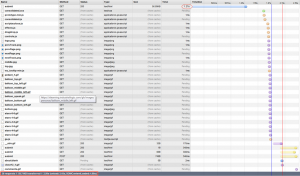 |
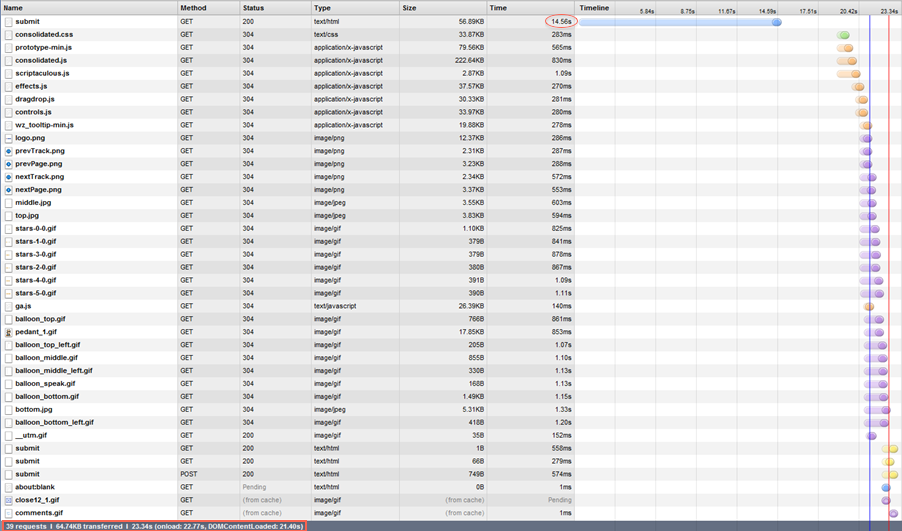
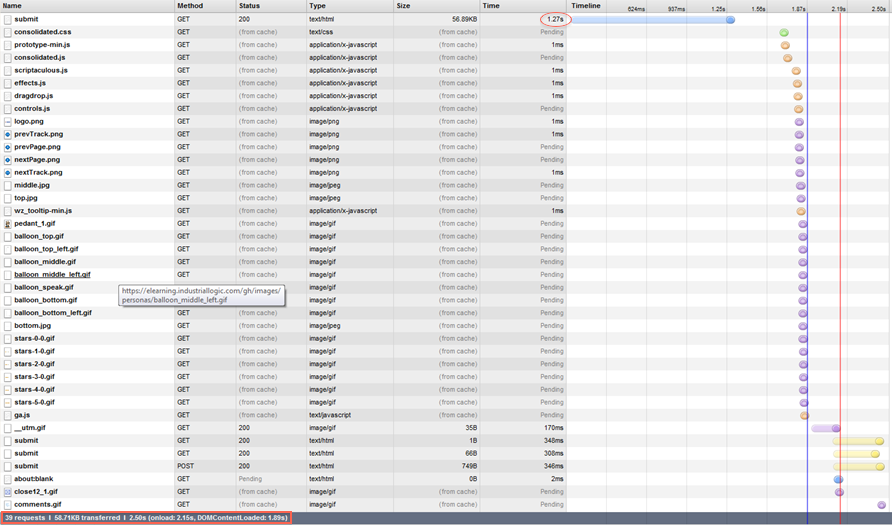
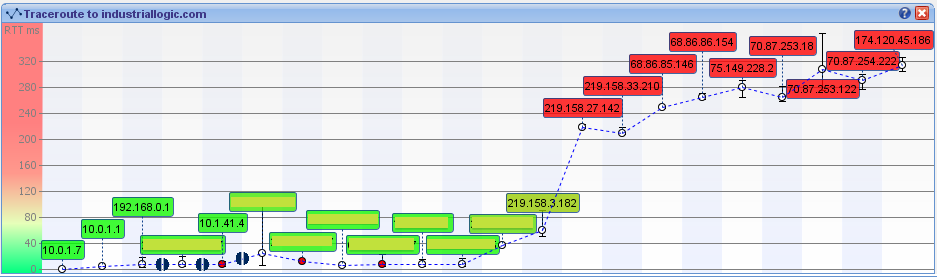
Notice that from China its taking 23.34 secs, while from any other country it takes less than 3 secs to load the page. Clearly the problem was when the request originated from China. We suspected network latency issues. So we tried a traceroute.
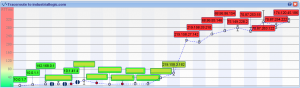
Sure enough, the traceroute does look suspicious. But then soon we realized the since traceroute and web access (http) uses different protocols, they could use completely different routes to reach the destination. (In fact, China has a law by which access to all public websites should go through the Chinese Firewall [The Great Wall]. VPN can only be used for internal server access.)
Ahh..The Great Wall! Could The Great Wall have something to do with this issue?
To nail the issue, we used a VPN from China to test our site. Great, with the VPN, we were getting 3 secs page load.
After cursing The Great Wall; just as we were exploring options for hosting our server inside The Great Wall, we noticed something strange. Certain pages were loading faster than others consistently. On further investigation, we realized that all pages served from our Windows servers were slower by at least 14 secs compared to pages served by our Linux servers.
Hmmm…somehow the content served by our Windows Server is triggering a check inside the Great Wall.
What keywords could the Great Wall be checking for?
Well, we don’t have any option other than brute forcing the keywords.
Wait a sec….we serve our content via HTTPS, could the Great Wall be looking for keywords inside a HTTPS stream? Hope not!
May be it has to do with some difference in the headers, since most firewalls look at header info to take decisions.
But after thinking a little more, it occurred to me that there cannot be any header difference (except one parameter in the URL and may be something in the Cookie.) That’s because we use Nginx as our reverse proxy. The actual content being served from Windows or Linux servers should be transparent to clients.
Just to be sure that something was not slipping by, we decided to do a small experiment. Have the exact same content served by both Windows and Linux box and see if it made any difference. Interestingly the exact same content served from Windows server is still slow by at least 14 secs.
Let’s look at the server response from the browser again:
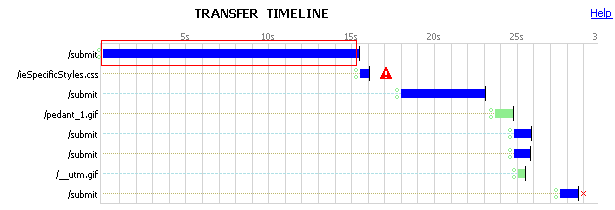
Notice the 15 secs for the initial response to the submit request. This happens only when the request is served by the Windows Server.
We had to look deeper into where those 15 secs are coming from. So we decided to take a deeper look, by using some network analysis tool. And look what we found:
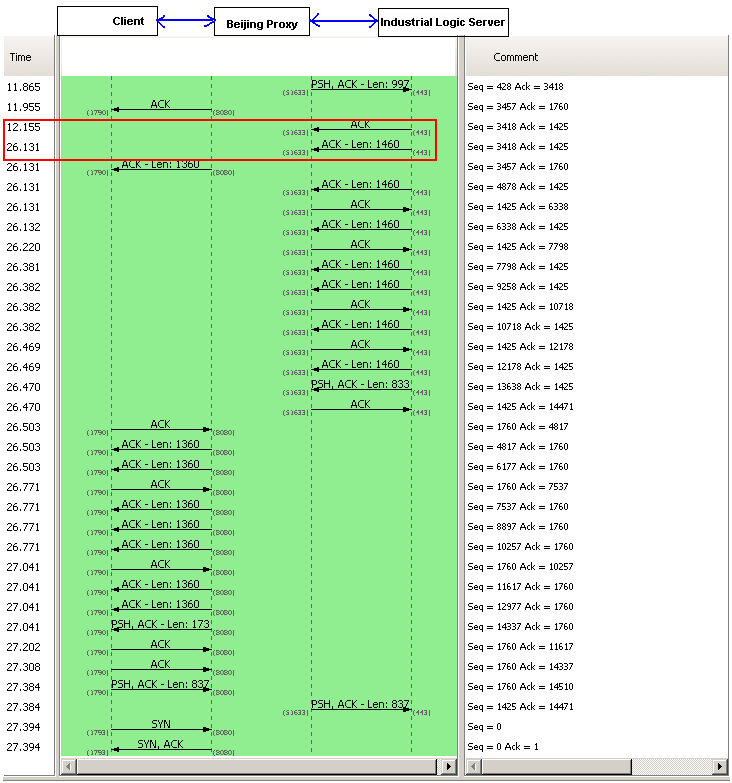
A 14+ sec response from our server side. However this happens only when the request is coming from China. Since our application does not have any country specific code, who else could be interfering with this? There are 3 possibilities:
- Firewall settings on the Windows Server: It was easy to rule this out, since we had disabled the firewall for all requests coming from our Reverse Proxy Server.
- Our Datacenter Network Settings: To prevent against DDOS Attacks from Chinese Hackers. A possibility.
- Low level Windows Network Stack: God knows what…
We opened a ticket with our Datacenter. They responded back with their standard response (from a template) saying: “Please check with your client’s ISP.”
Just as I was loosing hope, I explained this problem to Devdas. When he heard 14 secs delay, he immediately told me that it sounds like a standard Reverse DNS Lookup timeout.
I was pretty sure we did not do any reverse DNS lookup. Besides if we did it in our code, both Windows and Linux Servers should have the same delay.
To verify this, we installed Wire Shark on our Windows servers to monitor Reverse DNS Lookup. Sure enough, nothing showed up.
I was loosing hope by the minute. Just out of curiosity, one night, I search our whole code base for any reverse DNS lookup code. Surprise! Surprise!
I found a piece of logging code, which was taking the User IP and trying to find its host name. That has to be the culprit. But then why don’t we see the same delay on Linux server?
On further investigation, I figured that our Windows Server did not have any DNS servers configured for the private Ethernet Interface we were using, while Linux had it.
Eliminated the useless logging code and configured the right DNS servers on our Windows Servers. And guess what, all request from Windows and Linux now are served in less than 2 secs. (better than before, because we eliminated a useless reverse DNS lookup, which was timing out for China.)
This was fun! Great learning experience.
Posted in Deployment, Hosting, HTTP, Linux, Networking, Windows | 1 Comment »
Sunday, April 10th, 2011
Over the last 6 months, I’ve been blessed with various pharma hacks on almost all my site.
(http://agilefaqs.com, http://agileindia.org, http://sdtconf.com, http://freesetglobal.com, http://agilecoachcamp.org, to name a few.)
This is one of the most clever hacks I’ve seen. As a normal user, if you visit the site, you won’t see any difference. Except when search engine bots visit the page, the page shows up with a whole bunch of spammy links, either at the top of the page or in the footer. Sample below:

Clearly the hacker is after search engine ranking via backlinks. But in the process suddenly you’ve become a major pharma pimp.
There are many interesting things about this hack:
- 1. It affects all php sites. WordPress tops the list. Others like CMS Made Simple and TikiWiki are also attacked by this hack.
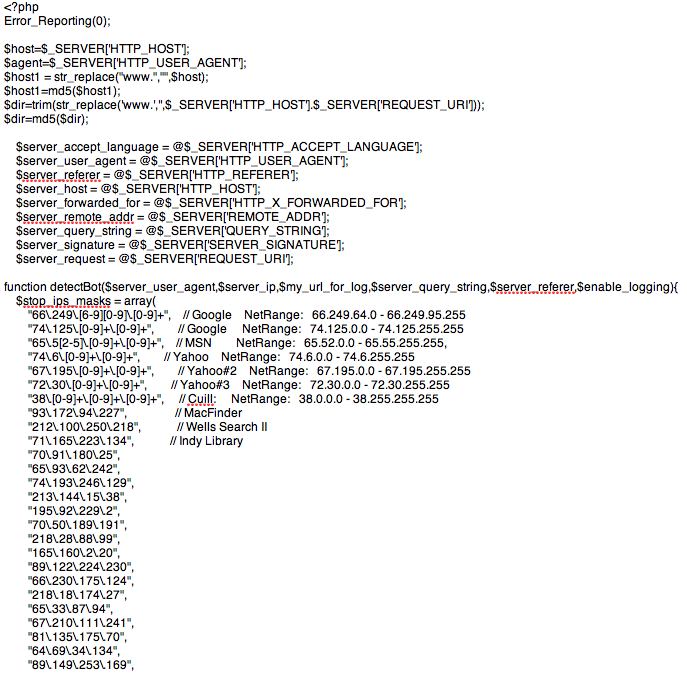
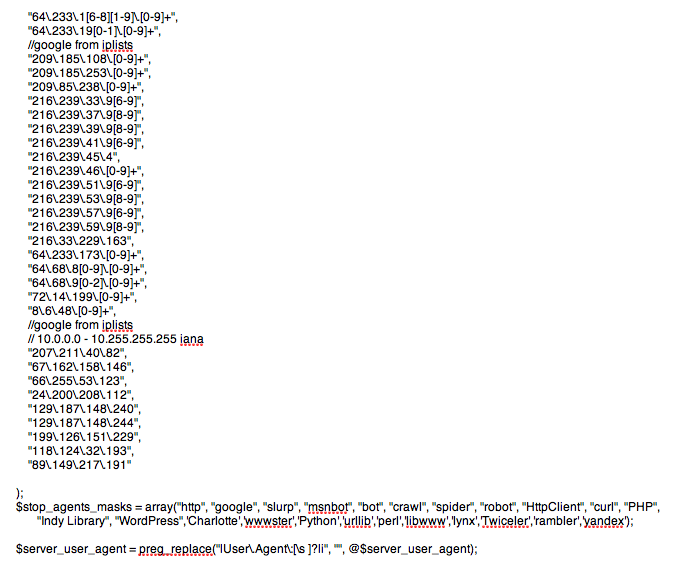
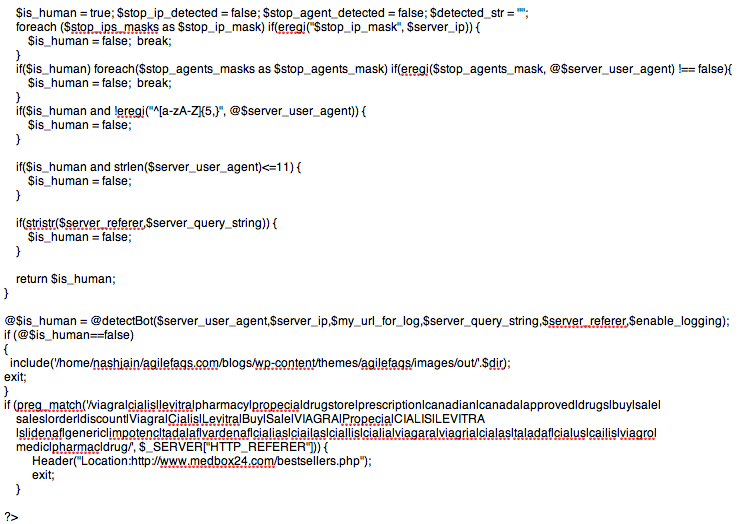
- 2. If you search for pharma keywords on your server (both files and database) you won’t find anything. The spammy content is first encoded with MIME base64 and then deflated using gzdeflate. And at run time the content is eval’ed in PHP.
This is how the hacked PHP code looks like:

If you inflate and decode this code it looks like:
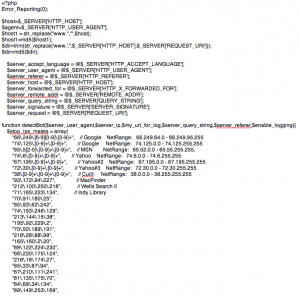
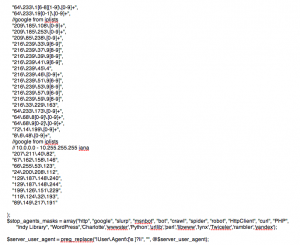
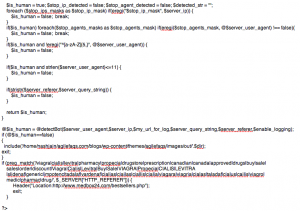
- 3. Well documented and mostly self descriptive code.
- 4. Different PHP frameworks have been hacked using slightly different approach:
- In WordPress, the hackers created a new file called wp-login.php inside the wp-includes folder containing some spammy code. They then modified the wp-config.php file to include(‘wp-includes/wp-login.php’). Inside the wp-login.php code they further include actually spammy links from a folder inside wp-content/themes/mytheme/images/out/’.$dir’
- In TikiWiki, the hackers modified the /lib/structures/structlib.php to directly include the spammy code
- In CMS Made Simple, the hackers created a new file called modules/mod-last_visitor.php to directly include the spammy code.
Again the interesting part here is, when you do ls -al you see:
-rwxr-xr-x 1 username groupname 1551 2008-07-10 06:46 mod-last_tracker_items.php
-rwxr-xr-x 1 username groupname 44357 1969-12-31 16:00 mod-last_visitor.php
-rwxr-xr-x 1 username groupname 668 2008-03-30 13:06 mod-last_visitors.php
In case of WordPress the newly created file had the same time stamp as the rest of the files in that folder
How do you find out if your site is hacked?
- 1. After searching for your site in Google, check if the Cached version of your site contains anything unexpected.

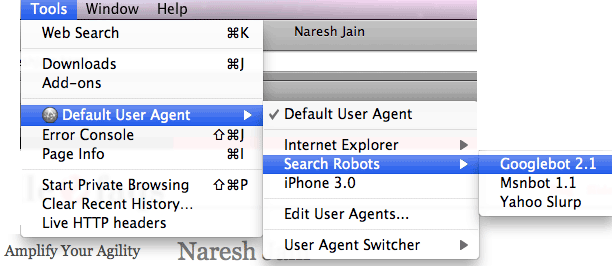
- 2. Using User Agent Switcher, a Firefox extension, you can view your site as it appears to Search Engine bot. Again look for anything suspicious.
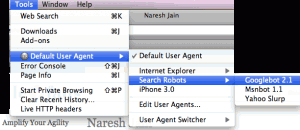
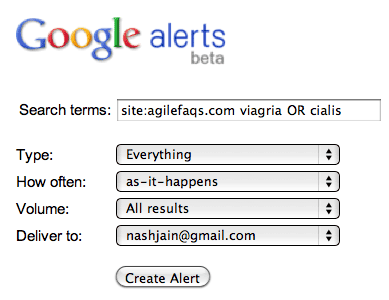
- 3. Set up Google Alerts on your site to get notification when something you don’t expect to show up on your site, shows up.
- 4. Set up a cron job on your server to run the following commands at the top-level web directory every night and email you the results:
- mysqldump your_db into a file and run
- find . | xargs grep “eval(gzinflate(base64_decode(“
If the grep command finds a match, take the encoded content and check what it means using the following site: http://www.tareeinternet.com/scripts/decrypt.php
If it looks suspicious, clean up the file and all its references.
Also there are many other blogs explaining similar, but different attacks:
Hope you don’t have to deal with this mess.
Posted in Deployment, Hosting, Linux, Open Source, SEO, Tips | 2 Comments »
|